


Did you know – you can open MS Word documents with a single click, instead of having to double click?
It sounds like a small detail but if you write for a living, then every way you can save time, helps you write the next document faster.
How To Open Folders With a Single, Not Double, Click
To do this you need to change the folder options:
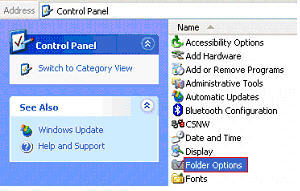
- Open Control Panel.
- Select Folder Options.
- Select the General Tab.
- Under, Click items as follows, select Single-click to open an item.
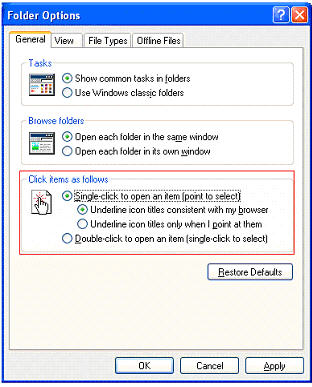
By the way, you can also select to open each folder in the same window or in a new folder. If things go wrong, click Restore Defaults to return to the original settings.
