

How do you turn on (or off) MS Word’s Automatic Language Settings? If you’re writing with more than one language in a document, Microsoft Word can automatically detect each language type as you write.
Automatic Language Settings – Turn On
To setup this feature:
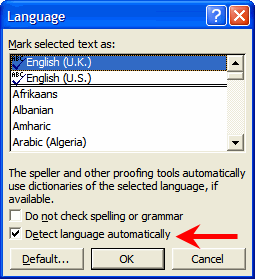
- Click Tools, Language, and then Set Language.
- Select the Detect language automatically check box.
Automatic Language Settings – Turn Off
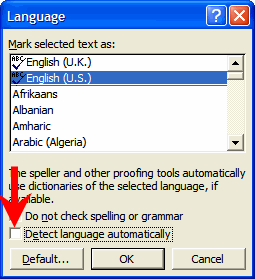
To turn off automatic language detection, clear the Detect language automatically check box.
Automatic Language Settings – Turn Off Specific Languages
Let’s say you want to turn off a specific language, for example, English (Ireland):
Remove it from the list of enabled languages in the Microsoft Office Language Settings tool.

Warning
When you remove the language, you won’t be able to use features provided by that language (for example, síneadh fadas for Irish) in Microsoft Office.
Do you have any problems with the Automatic Language Settings in Word?
